How Do I Use Search Live To Identify The Signs: How to Use Search Live to Identify Car Dashboard Warning Lights
→ Quebedeaux Buick GMC Arizona Title Issues: What We Know
That moment when a strange symbol lights up on your dashboard while you’re doing 80 mph on the motorway is genuinely unsettling. Is it serious? Can you keep driving? Should you pull over right now? Most drivers have no idea, and the car manual buried somewhere in the glovebox is not exactly helpful in the moment.
→ How Many Years Since 2026 1954 Buick Wildcat II
The good news is that your smartphone can now answer that question in seconds. Tools that fall under the umbrella of “Search Live” — real-time, camera-based search technology — have made it faster and easier than ever to identify exactly what your car is trying to tell you. Here’s how to use them properly.
What “Search Live” Actually Means
Search Live is not a single app. It refers to any search tool that works in real time using your phone’s camera, microphone, or both. The most widely used examples include Google Lens, Google’s Circle to Search feature on Android, and AI assistants like Google Assistant or ChatGPT when you describe what you’re seeing.
These tools can read visual information instantly. Point your camera at a symbol, and the system matches it against a vast database to tell you what it is. For dashboard warning lights, this works remarkably well because most car manufacturers follow standardised symbol designs across the industry.
Using Google Lens to Identify a Dashboard Symbol
Google Lens is the most accessible option for most drivers, and it works on both Android and iPhone.
Here’s how to use it:
- – Open the Google app on your phone and tap the Lens icon (it looks like a small camera) inside the search bar.
- – Alternatively, open your phone’s camera and look for a Lens or “Search” option within the camera interface.
- – Point the camera directly at the warning light on your dashboard. Try to hold the phone steady and make sure the symbol is well-lit and in focus.
- – Tap on the symbol or let the app scan automatically.
- – Google Lens will return results identifying the symbol, what it means, and in many cases, what action you should take.
The whole process takes about five to ten seconds. For common symbols like the engine warning light, battery indicator, oil pressure light, or tyre pressure warning, Lens is usually accurate and fast.
Getting More Specific Answers with AI Tools
Google Lens gives you a quick identification, but if you want to understand the severity or get advice specific to your car model, describing the light to an AI assistant takes things a step further.
You can type or speak something like: “There’s a yellow light shaped like an engine on my dashboard — I drive a 2019 Ford Focus. Is it safe to keep driving?” Tools like ChatGPT, Google Gemini, or even a voice search through Google Assistant will give you a more contextual answer, including whether the issue is urgent, what might be causing it, and what your next step should be.
This approach is especially useful when the symbol is unusual, when you have multiple lights on at once, or when you want to understand whether the problem could wait until your next service appointment or needs attention today.
Using Your Car Brand’s Official App
For the most accurate, model-specific information, your car manufacturer’s official app is worth downloading if you haven’t already. Brands like Ford, Volkswagen, BMW, Toyota, and most others offer companion apps that connect to your vehicle and can read diagnostic data directly. These apps often include a built-in warning light guide tailored to your exact model and year.
If a light comes on and you’re unsure, the official app will tell you what it means for your specific car, not just the general industry-standard definition.
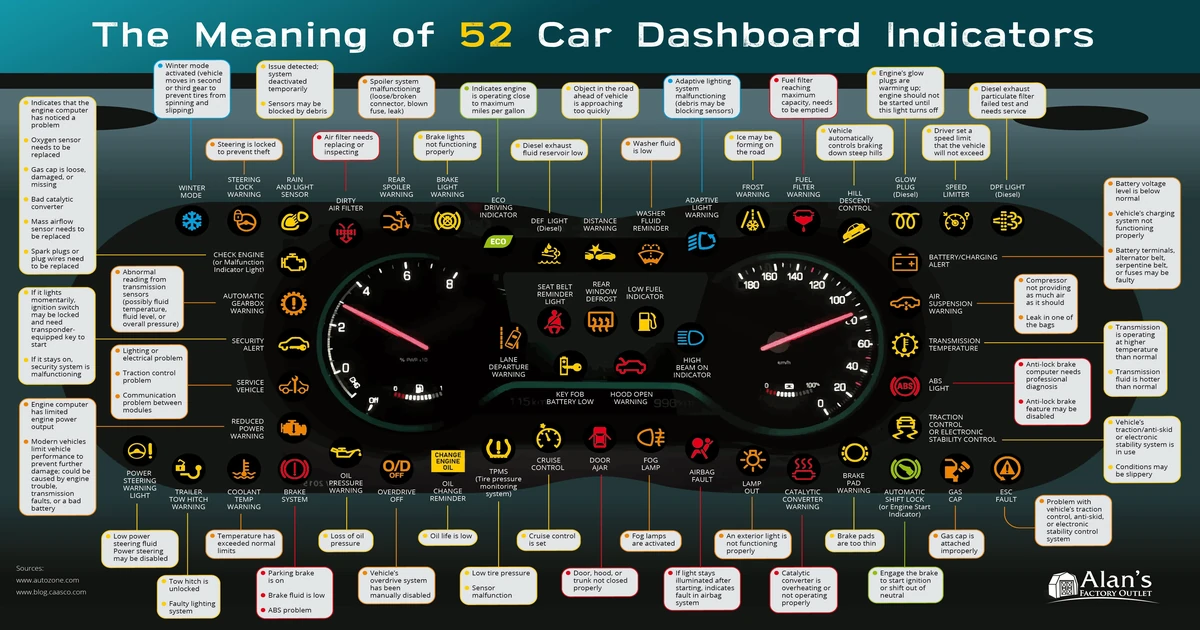
Understanding What the Colour of the Light Tells You
Once you’ve identified a symbol, the colour gives you an immediate sense of urgency before you even read the description.
- – Red lights mean stop or take immediate action. These include oil pressure warnings, engine temperature lights, and brake system alerts. Continuing to drive with a red warning light on can cause serious mechanical damage.
- – Yellow or amber lights signal that something needs attention soon but is not necessarily an emergency right now. Tyre pressure, low fuel, or a service reminder typically show in yellow.
- – Green or blue lights are informational. They tell you that a system is active, like your high beams or cruise control.
This matters practically because if Google Lens identifies a red symbol, you should pull over safely as soon as possible rather than continuing your journey.
A Few Things to Keep in Mind
Camera-based search tools work best in good lighting. If your dashboard is dimly lit or the symbol is small, take a photo first using your phone’s camera, zoom in to make the symbol clear, then run it through Google Lens from your photo library. This gives the tool a cleaner image to work with.
Also worth knowing: driving while looking at your phone is dangerous. If a warning light appears while you’re moving, pull over safely before attempting to identify it. No search result is worth the risk of driving distracted.
Finally, identifying a warning light is only the first step. Once you know what it means, act on that information. A yellow tyre pressure light might just need a top-up at the nearest petrol station. A red oil pressure light means you stop the engine as soon as it is safe to do so. Knowing what the symbol is only helps if you follow through.
Your phone has turned a confusing and stressful moment into something manageable. Use it, but use it safely.
Relevant posts
- How Many Days For Built GT40 MK ii
- The Ferrari 458 Italia: A North American Buyer’s Guide to the Last Great Naturally Aspirated V8
- Férarie Car Window Tint Luxury: Premium Window Tinting for Exotic Supercars
Visit deckersauto.com for more stories.